
Using the VMG Mobile App for Stock Take Purposes
This process assumes the following
- You have barcodes listed on all your parts in their various bin locations
- You have subscribed to and setup the VMG WMS Mobile App.
There are four primary steps to this process. These are described below.
STEP 1: GET THE NEXT STOCK TAKE READY #
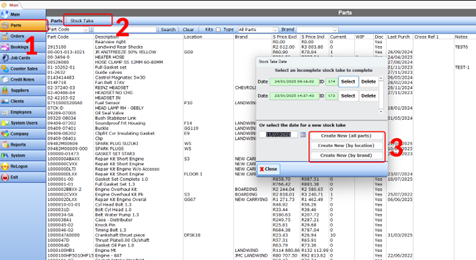
1 – Go to Parts
2 – Select Stock Take
4 – Create a New Stock Take
4 – Select Bin locations to count
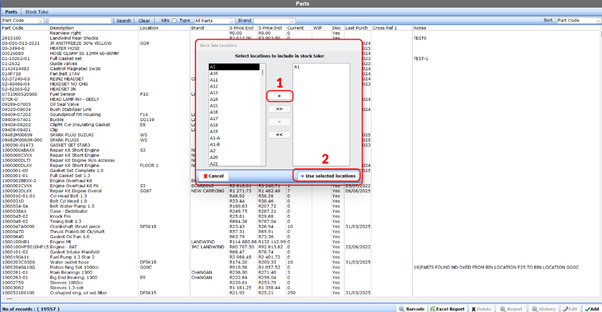
5 – Select Yes to start stock take

6 – Click Save

7 – Once saved, you will see that the stock take has been added to the open stock take lists and will have a specific ID. Remember this ID in the next step.
STEP 2: BEGIN THE COUNT USING YOUR WMS MOBILE APP #
1 – Log onto your WMS Mobile App #
- Select Barcode
- Then select Stock Take

3 – To start a new session #
-
- Click the Plus Sign (1) in the bottom right-hand corner
- Select the ID found in number 7 of STEP 1 above (2).
- Once the correct open stock take is selected, click the scan button.
- Your camera will open, and you can start scanning barcodes.

4 – Scan the barcode #
-
- by aligning it in the square box on screen.
- Use the torch feature if the barcode is in poor light or not being read correctly
NOTE: Ensure that your barcode printing is of good enough quality for the camera to read it.

5 – Enter the part details and move on #
-
- Verify the part description and code
- Enter the quantity counted
- click NEXT SCAN to scan the next barcode
- click DONE when you are finished scanning parts and wish to conclude your count.

Once the count is complete, you can close the Mobile app and continue to Step 3.
STEP 3: IMPORT THE COUNT #
1 – Navigate back to your VMG WMS #
- Click on System
- Click on Import Barcodes
- Select View Parts
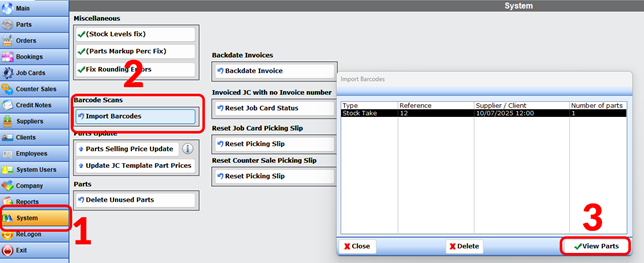
2 – Verify Data #
- Check for any obvious incorrect counts (if unsure, rescan the part and recount)
- Click import when ready.
- Click complete when prompted after step 2 above.

STEP 4: CONCLUDE STOCK TAKE #
1 – Navigate to the Stock take #
- Select the Parts Module
- Select Stock Take
- Select the Stock take you’ve have just counted in your WMS Mobile.

2 – Verify, Report, Save or Process #
- Check that you are happy with the levels and manually edit if not satisfied. You can also edit the bin location if needed.
- Print the variance report if required
- Process the stock take when ready. This will update your inventory accordingly.

Congratulations, you have just concluded a stock take using your VMG WMS Mobile App