Skip to content

VALUES VISION MISSION STRATEGY

4
  • Our Core Values
  • Our Core Strategy
  • Our Mission
  • Our Vission

ONBOARDING NEW CUSTOMERS

18
  • OS Onboarding Guide – New Dealership
  • OS Onboarding Guide – Migrating Existing Dealership
  • The Onboarding Process
  • Expectation Management
  • The Demo
  • Demo Notes – by Kendall Adams
  • Quality User Experience
  • The Quote
  • Quote Notes – by Kendall Adams
  • Quote Mistakes
  • The Take-On
  • The Welcome Email
  • Install and Setup WMS
  • Progress Reports
  • Status Update Emails
  • User Alert Emails
  • DMS Onboarding Checklist
  • WMS Onboarding Checklist

VMG ACCOUNTING

16
  • DMS Accounting Take On Rules
  • WMS Accounting Take On Rules
  • DMS with WMS Accounting Take On Rules
  • Opening Balances Process
  • Cost of Sale @ Point of Sale Process
  • VMG MULTIBRANCH
  • Accounting Fundamentals
  • What type of bookkeeping platform is VMG?
  • Suggested Paperwork Process Flow
  • VMG Bookkeeping Process Flow
  • The Onboarding Process
  • Quality User Experience
  • Accounting Assessment
  • Inventory Costing Methods
  • User Alert Emails
  • VMG Bookkeeping Services Agreement

VMG WORKSHOP PRO

13
  • Jobcard Workflow
  • Inventory Costing Methods
  • WMS Onboarding Checklist
  • User Alert Emails
  • DMS & WMS Mobile Assessment
  • WMS Pro Assessment
  • The Onboarding Process
  • Install and Setup WMS
  • WMS Product Knowledge Builder
  • Inventory Costing Methods
  • Mobile App Stock Take
  • JobCard Timer
  • In Progress: DMS & WMS Integration

VMG DMS PRO

10
  • DMS 101 Practical Assessment
  • Transunion Pricing 2026
  • Managing Over Allowance
  • DMS Pro Health Check
  • Floor Plan Management
  • The Onboarding Process
  • DMS Onboarding Checklist
  • User Alert Emails
  • DMS & WMS Mobile Assessment
  • DMS Pro Assessment

WORKING WITH OTHERS

7
  • People Are Who You Make Them
  • Relationships & Influence
  • Problem Solving Step by Step
  • Quality User Experience
  • Mastering Effective Communication
  • Professional Selling
  • Expectation Management

ASSESSMENT TOPICS AND QUESTIONS

20
  • WMS 101 Practical Assessment
  • DMS 101 Practical Assessment
  • VMG Accounting 101 Test
  • High Level Knowledge Assessment
  • Add-Ons Department Knowledge Assessment
  • Support Department Knowledge Assessment
  • Technical Knowledge Assessment
  • Domains And Emails Knowledge Assessment
  • Society Knowledge Assessment
  • Industry Knowledge Assessment
  • Training Knowledge Assessment
  • Sales Knowledge Assessment
  • WMS Pro Assessment
  • DMS Pro Assessment
  • Accounting Assessment
  • Onboarding New Customers Asessment
  • DMS & WMS Mobile Assessment
  • CRM Assessment
  • Management Knowledge Assessment
  • Business Knowledge Assessment

VMG HIGH-LEVEL

4
  • What is VMG Software?
  • VMG Departments
  • Data Security and Confidentiality Policy
  • The VMG Service Ethos

VMG ADD ONS DEPT

2
  • VMG Website Templates 2025
  • Quick Guide: AutoTrader Feed

VMG FRONTLINE

13
  • 2026 Pricing (VAT Incl)
  • Install and Setup WMS
  • Quality Site Visits
  • Welcome to the VMG Frontline Team
  • What is VMG Software?
  • The Frontline Job Description
  • The Frontline Duties and Responsabilities
  • Our Culture
  • Our Commitment to the Motor Industry and VMG
  • VMG Departments
  • Our Competitors
  • Our Market
  • The VMG Service Ethos

VMG SUPPORT DEPARTMENT

3
  • DMS Installation Protocol
  • Install and Setup WMS
  • The VMG Service Ethos

MANAGEMENT & LEADERSHIP

6
  • How to make new staff members feel part of VMG
  • The Leadership Trifecta
  • Leadership: Accountability without Micromanagement
  • Leadership: Accountability – How to Build It
  • Management Basics
  • Leadership Styles

BUSINESS KNOWLEDGE

4
  • Business Agreements
  • Governments Role In Business?
  • How Business are Setup in South Africa?
  • Why Do Businesses Exist?

THE CAR PLACE

2
  • Transunion Pricing 2026
  • Reseller Products Sign Up process

VMG ONLINE

3
  • OS Onboarding Guide – Migrating Existing Dealership
  • Creating 3rd Party Vendor API Keys
  • OS Onboarding Guide – New Dealership

PROFESSIONAL USER TRAINING

3
  • The Essential Training Delivery Module
  • What is Leaner Centricity
  • Training Phases – WMS

VMG CRM

2
  • Questions the Sales Manager Needs to Answer
  • CRM Assessment
View Categories

Mobile App Stock Take

1 min read

Using the VMG Mobile App for Stock Take Purposes

This process assumes the following

  1. You have barcodes listed on all your parts in their various bin locations
  2. You have subscribed to and setup the VMG WMS Mobile App.

There are four primary steps to this process. These are described below.

STEP 1: GET THE NEXT STOCK TAKE READY #

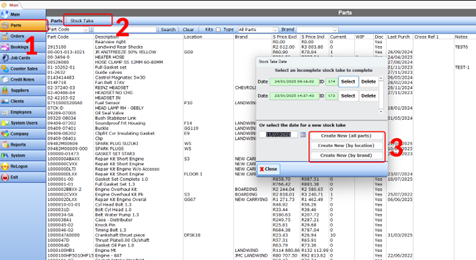
1 – Go to Parts

2 – Select Stock Take

4 – Create a New Stock Take
4 – Select Bin locations to count
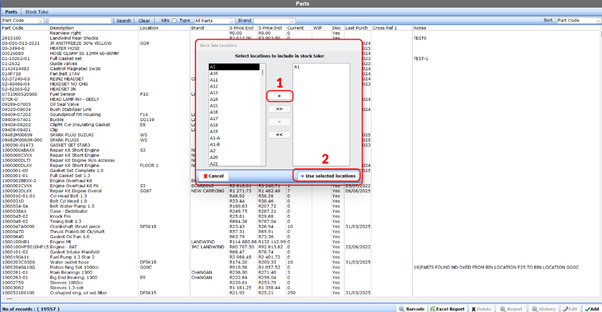
5 – Select Yes to start stock take

6 – Click Save

7 – Once saved, you will see that the stock take has been added to the open stock take lists and will have a specific ID. Remember this ID in the next step.

STEP 2: BEGIN THE COUNT USING YOUR WMS MOBILE APP #

1 – Log onto your WMS Mobile App #
  1. Select Barcode
  2. Then select Stock Take
3 – To start a new session #
    1. Click the Plus Sign (1) in the bottom right-hand corner
    2. Select the ID found in number 7 of STEP 1 above (2).
    3. Once the correct open stock take is selected, click the scan button.
      1. Your camera will open, and you can start scanning barcodes.
4 – Scan the barcode #
    1. by aligning it in the square box on screen.
    2. Use the torch feature if the barcode is in poor light or not being read correctly

NOTE: Ensure that your barcode printing is of good enough quality for the camera to read it.

5 – Enter the part details and move on #
    1. Verify the part description and code
    2. Enter the quantity counted
    3. click NEXT SCAN to scan the next barcode
    4. click DONE when you are finished scanning parts and wish to conclude your count.

Once the count is complete, you can close the Mobile app and continue to Step 3.

STEP 3: IMPORT THE COUNT #

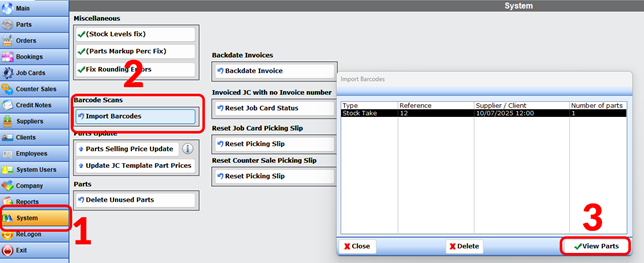
1 – Navigate back to your VMG WMS #
  1. Click on System
  2. Click on Import Barcodes
  3. Select View Parts
2 – Verify Data #
  1. Check for any obvious incorrect counts (if unsure, rescan the part and recount)
  2. Click import when ready.
  3. Click complete when prompted after step 2 above.

STEP 4: CONCLUDE STOCK TAKE #

1 – Navigate to the Stock take #
  1. Select the Parts Module
  2. Select Stock Take
  3. Select the Stock take you’ve have just counted in your WMS Mobile.
2 – Verify, Report, Save or Process #
  1. Check that you are happy with the levels and manually edit if not satisfied. You can also edit the bin location if needed.
  2. Print the variance report if required
  3. Process the stock take when ready. This will update your inventory accordingly.

Congratulations, you have just concluded a stock take using your VMG WMS Mobile App

Updated on July 14, 2025
Table of Contents
  • STEP 1: GET THE NEXT STOCK TAKE READY
  • STEP 2: BEGIN THE COUNT USING YOUR WMS MOBILE APP
    • 1 - Log onto your WMS Mobile App
    • 3 - To start a new session
    • 4 - Scan the barcode
    • 5 - Enter the part details and move on
  • STEP 3: IMPORT THE COUNT
    • 1 - Navigate back to your VMG WMS
    • 2 - Verify Data
  • STEP 4: CONCLUDE STOCK TAKE
    • 1 - Navigate to the Stock take
    • 2 - Verify, Report, Save or Process