Skip to content

VALUES VISION MISSION STRATEGY

4
  • Our Core Values
  • Our Core Strategy
  • Our Mission
  • Our Vission

ONBOARDING NEW CUSTOMERS

19
  • Project Management 101
  • OS Onboarding Guide – New Dealership
  • OS Onboarding Guide – Migrating Existing Dealership
  • The Onboarding Process
  • Expectation Management
  • The Demo
  • Demo Notes – by Kendall Adams
  • Quality User Experience
  • The Quote
  • Quote Notes – by Kendall Adams
  • Quote Mistakes
  • The Take-On
  • The Welcome Email
  • Install and Setup WMS
  • Progress Reports
  • Status Update Emails
  • User Alert Emails
  • DMS Onboarding Checklist
  • WMS Onboarding Checklist

VMG ACCOUNTING

16
  • DMS Accounting Take On Rules
  • WMS Accounting Take On Rules
  • DMS with WMS Accounting Take On Rules
  • Opening Balances Process
  • Cost of Sale @ Point of Sale Process
  • VMG MULTIBRANCH
  • Accounting Fundamentals
  • What type of bookkeeping platform is VMG?
  • Suggested Paperwork Process Flow
  • VMG Bookkeeping Process Flow
  • The Onboarding Process
  • Quality User Experience
  • Accounting Assessment
  • Inventory Costing Methods
  • User Alert Emails
  • VMG Bookkeeping Services Agreement

VMG WORKSHOP PRO

14
  • PREPARING PARTS FOR WEBSITE DISPLAY
  • Jobcard Workflow
  • Inventory Costing Methods
  • WMS Onboarding Checklist
  • User Alert Emails
  • DMS & WMS Mobile Assessment
  • WMS Pro Assessment
  • The Onboarding Process
  • Install and Setup WMS
  • WMS Product Knowledge Builder
  • Inventory Costing Methods
  • Mobile App Stock Take
  • JobCard Timer
  • In Progress: DMS & WMS Integration

VMG DMS PRO

10
  • DMS 101 Practical Assessment
  • Transunion Pricing 2026
  • Managing Over Allowance
  • DMS Pro Health Check
  • Floor Plan Management
  • The Onboarding Process
  • DMS Onboarding Checklist
  • User Alert Emails
  • DMS & WMS Mobile Assessment
  • DMS Pro Assessment

WORKING WITH OTHERS

8
  • Project Management 101
  • People Are Who You Make Them
  • Relationships & Influence
  • Problem Solving Step by Step
  • Quality User Experience
  • Mastering Effective Communication
  • Professional Selling
  • Expectation Management

ASSESSMENT TOPICS AND QUESTIONS

20
  • WMS 101 Practical Assessment
  • DMS 101 Practical Assessment
  • VMG Accounting 101 Test
  • High Level Knowledge Assessment
  • Add-Ons Department Knowledge Assessment
  • Support Department Knowledge Assessment
  • Technical Knowledge Assessment
  • Domains And Emails Knowledge Assessment
  • Society Knowledge Assessment
  • Industry Knowledge Assessment
  • Training Knowledge Assessment
  • Sales Knowledge Assessment
  • WMS Pro Assessment
  • DMS Pro Assessment
  • Accounting Assessment
  • Onboarding New Customers Asessment
  • DMS & WMS Mobile Assessment
  • CRM Assessment
  • Management Knowledge Assessment
  • Business Knowledge Assessment

VMG HIGH-LEVEL

6
  • Food for Thought: LLM Threat to VMG SaaS
  • Project Management 101
  • What is VMG Software?
  • VMG Departments
  • Data Security and Confidentiality Policy
  • The VMG Service Ethos

VMG ADD ONS DEPT

2
  • VMG Website Templates 2025
  • Quick Guide: AutoTrader Feed

VMG FRONTLINE

13
  • 2026 Pricing (VAT Incl)
  • Install and Setup WMS
  • Quality Site Visits
  • Welcome to the VMG Frontline Team
  • What is VMG Software?
  • The Frontline Job Description
  • The Frontline Duties and Responsabilities
  • Our Culture
  • Our Commitment to the Motor Industry and VMG
  • VMG Departments
  • Our Competitors
  • Our Market
  • The VMG Service Ethos

VMG SUPPORT DEPARTMENT

3
  • DMS Installation Protocol
  • Install and Setup WMS
  • The VMG Service Ethos

MANAGEMENT & LEADERSHIP

7
  • Project Management 101
  • How to make new staff members feel part of VMG
  • The Leadership Trifecta
  • Leadership: Accountability without Micromanagement
  • Leadership: Accountability – How to Build It
  • Management Basics
  • Leadership Styles

BUSINESS KNOWLEDGE

5
  • Project Management 101
  • Business Agreements
  • Governments Role In Business?
  • How Business are Setup in South Africa?
  • Why Do Businesses Exist?

THE CAR PLACE

2
  • Transunion Pricing 2026
  • Reseller Products Sign Up process

VMG ONLINE

3
  • OS Onboarding Guide – Migrating Existing Dealership
  • Creating 3rd Party Vendor API Keys
  • OS Onboarding Guide – New Dealership

PROFESSIONAL USER TRAINING

3
  • The Essential Training Delivery Module
  • What is Leaner Centricity
  • Training Phases – WMS

VMG CRM

2
  • Questions the Sales Manager Needs to Answer
  • CRM Assessment

VMG LAB DEPARTMENT

5
  • Protected: Report Requirements
  • Protected: Ticket Point System
  • Protected: Ticket Life Cycle
  • Protected: VMGOS Deployment – Backend
  • Protected: VMGOS Deployment – Frontend
View Categories

JobCard Timer

3 min read

0:00 / 2:50
  • View as Markdown Open this page as plain Markdown (opens in a new tab)
  • Open in ChatGPT Ask questions about this page (opens in a new tab)
  • Open in Claude Ask questions about this page (opens in a new tab)
  • Open in Google AI Studio Ask questions about this page (Google account required) (opens in a new tab)

A simple yet powerful labour management tool​

Who should use it?

  • Any workshop where the owner feels that accurate technician time reporting is required.

How to Setup the Timer System 

  1. You will need a computer that your technicians have easy access to. This workstation will be used mostly by the technicians.
  2. Install VMG WMS onto this workstation. (if you don’t know how, see – https://vmgexcellence.co.za/wms-installing-wms/
  3. Visit setup.vmgsoftware and navigate to, VMG WMS Install Files – 2025/OLD – VMG Workshop Installs
  4. Download Workshop Timer.rar  
  5. Copy the file to the AMG WORKSHOP folder
  6. Extract the file to the AMG WORKSHOP folder.

  1. Save a shortcut to the Timer application onto the desktop
  2. Double click the application icon to open the Timer System

SETUP THE TIMER SYSTEM

  • In WMS, you will need to setup a pin code for each technician
  • In the employee tab, add/edit the relevant employee.
  • Select “show in labour list”. You will see a generate PIN button.
  • Click the generate pin button.
  • You can retrieve the pin number from your VMG DBA team.

Using the Timer Module

Step 1

  1. Add a labour line to the JB
  2. Select the technician
  3. Click Save

Note: If no technician is addded to the labour line, the JC will be visible by ALL technicians in the timer system. Once a technician starts the timer in the JC Timer Module, his name will automatically be assigned to the Tehcnician field on the labour line on the jobcard.

Step 2

  1. Open the Timer module and enter the technicians password

2. Choose the Job in the Timer
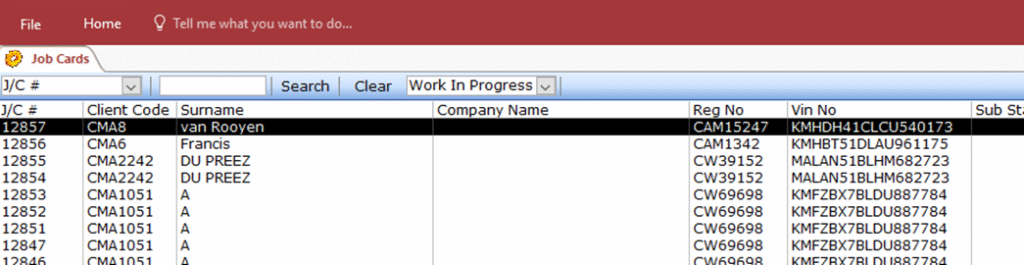
3. Use “Timer – Start/Stop” to start the Timer.

4. If START or STOP are selected, the Start / Stop window will close automatically

Load Time to a JobCard

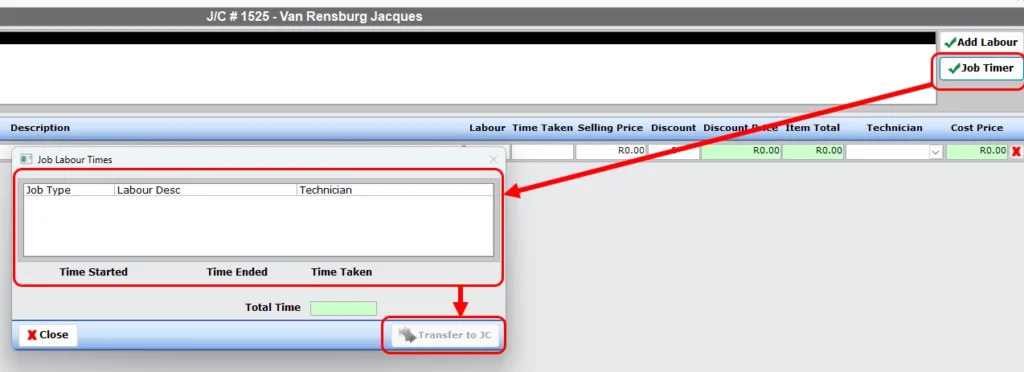
  • In DMS, open the JobCard and navigate to the Labour Tab
  • Select the JobTimer Button and then Transfer the relevant line item to JC
How does the Timer System Know Which Database to connect to?

  • The timer application uses the same ODBC driver settings used by the Workshop system installed on that Workstation. 
  • This is why, you can only install one JobCard timer for one database on one PC.

When CAN’T a JobCard timer be started or stopped?

  • When no labour is added to the JC
  • When another technician is assigned to that job card
  • When the Labour Type is set to not show on JobCard Timer.

When CAN a JobCard timer be started or stopped?

  • When labour is added but no technician is loaded in the technician field on the labour line
  • When the technician logging onto the timer matches the technician in the labour line on the WMS JobCard.

Why do I see ALL JobCards when logging onto the Timer Application?

  • You see all Jobcards so that you can select the one that have been assigned to you. If you notice that you are unable to start/stop the timer, it means theres a problem on the WMS side that needs to be sorted. (See Why CANT a JobCard Timer be started or stopped above.

Updated on October 30, 2025