Skip to content

VALUES VISION MISSION STRATEGY

4
  • Our Core Values
  • Our Core Strategy
  • Our Mission
  • Our Vission

ONBOARDING NEW CUSTOMERS

19
  • Project Management 101
  • OS Onboarding Guide – New Dealership
  • OS Onboarding Guide – Migrating Existing Dealership
  • The Onboarding Process
  • Expectation Management
  • The Demo
  • Demo Notes – by Kendall Adams
  • Quality User Experience
  • The Quote
  • Quote Notes – by Kendall Adams
  • Quote Mistakes
  • The Take-On
  • The Welcome Email
  • Install and Setup WMS
  • Progress Reports
  • Status Update Emails
  • User Alert Emails
  • DMS Onboarding Checklist
  • WMS Onboarding Checklist

VMG ACCOUNTING

16
  • DMS Accounting Take On Rules
  • WMS Accounting Take On Rules
  • DMS with WMS Accounting Take On Rules
  • Opening Balances Process
  • Cost of Sale @ Point of Sale Process
  • VMG MULTIBRANCH
  • Accounting Fundamentals
  • What type of bookkeeping platform is VMG?
  • Suggested Paperwork Process Flow
  • VMG Bookkeeping Process Flow
  • The Onboarding Process
  • Quality User Experience
  • Accounting Assessment
  • Inventory Costing Methods
  • User Alert Emails
  • VMG Bookkeeping Services Agreement

VMG WORKSHOP PRO

14
  • PREPARING PARTS FOR WEBSITE DISPLAY
  • Jobcard Workflow
  • Inventory Costing Methods
  • WMS Onboarding Checklist
  • User Alert Emails
  • DMS & WMS Mobile Assessment
  • WMS Pro Assessment
  • The Onboarding Process
  • Install and Setup WMS
  • WMS Product Knowledge Builder
  • Inventory Costing Methods
  • Mobile App Stock Take
  • JobCard Timer
  • In Progress: DMS & WMS Integration

VMG DMS PRO

10
  • DMS 101 Practical Assessment
  • Transunion Pricing 2026
  • Managing Over Allowance
  • DMS Pro Health Check
  • Floor Plan Management
  • The Onboarding Process
  • DMS Onboarding Checklist
  • User Alert Emails
  • DMS & WMS Mobile Assessment
  • DMS Pro Assessment

WORKING WITH OTHERS

8
  • Project Management 101
  • People Are Who You Make Them
  • Relationships & Influence
  • Problem Solving Step by Step
  • Quality User Experience
  • Mastering Effective Communication
  • Professional Selling
  • Expectation Management

ASSESSMENT TOPICS AND QUESTIONS

20
  • WMS 101 Practical Assessment
  • DMS 101 Practical Assessment
  • VMG Accounting 101 Test
  • High Level Knowledge Assessment
  • Add-Ons Department Knowledge Assessment
  • Support Department Knowledge Assessment
  • Technical Knowledge Assessment
  • Domains And Emails Knowledge Assessment
  • Society Knowledge Assessment
  • Industry Knowledge Assessment
  • Training Knowledge Assessment
  • Sales Knowledge Assessment
  • WMS Pro Assessment
  • DMS Pro Assessment
  • Accounting Assessment
  • Onboarding New Customers Asessment
  • DMS & WMS Mobile Assessment
  • CRM Assessment
  • Management Knowledge Assessment
  • Business Knowledge Assessment

VMG HIGH-LEVEL

6
  • Food for Thought: LLM Threat to VMG SaaS
  • Project Management 101
  • What is VMG Software?
  • VMG Departments
  • Data Security and Confidentiality Policy
  • The VMG Service Ethos

VMG ADD ONS DEPT

2
  • VMG Website Templates 2025
  • Quick Guide: AutoTrader Feed

VMG FRONTLINE

13
  • 2026 Pricing (VAT Incl)
  • Install and Setup WMS
  • Quality Site Visits
  • Welcome to the VMG Frontline Team
  • What is VMG Software?
  • The Frontline Job Description
  • The Frontline Duties and Responsabilities
  • Our Culture
  • Our Commitment to the Motor Industry and VMG
  • VMG Departments
  • Our Competitors
  • Our Market
  • The VMG Service Ethos

VMG SUPPORT DEPARTMENT

3
  • DMS Installation Protocol
  • Install and Setup WMS
  • The VMG Service Ethos

MANAGEMENT & LEADERSHIP

7
  • Project Management 101
  • How to make new staff members feel part of VMG
  • The Leadership Trifecta
  • Leadership: Accountability without Micromanagement
  • Leadership: Accountability – How to Build It
  • Management Basics
  • Leadership Styles

BUSINESS KNOWLEDGE

5
  • Project Management 101
  • Business Agreements
  • Governments Role In Business?
  • How Business are Setup in South Africa?
  • Why Do Businesses Exist?

THE CAR PLACE

2
  • Transunion Pricing 2026
  • Reseller Products Sign Up process

VMG ONLINE

3
  • OS Onboarding Guide – Migrating Existing Dealership
  • Creating 3rd Party Vendor API Keys
  • OS Onboarding Guide – New Dealership

PROFESSIONAL USER TRAINING

3
  • The Essential Training Delivery Module
  • What is Leaner Centricity
  • Training Phases – WMS

VMG CRM

2
  • Questions the Sales Manager Needs to Answer
  • CRM Assessment

VMG LAB DEPARTMENT

5
  • Protected: Report Requirements
  • Protected: Ticket Point System
  • Protected: Ticket Life Cycle
  • Protected: VMGOS Deployment – Backend
  • Protected: VMGOS Deployment – Frontend
View Categories

Install and Setup WMS

3 min read

0:00 / 4:29
  • View as Markdown Open this page as plain Markdown (opens in a new tab)
  • Open in ChatGPT Ask questions about this page (opens in a new tab)
  • Open in Claude Ask questions about this page (opens in a new tab)
  • Open in Google AI Studio Ask questions about this page (Google account required) (opens in a new tab)

Follow these steps for seamless VMG WMS installs

CHECK REGIONAL SETTINGS #

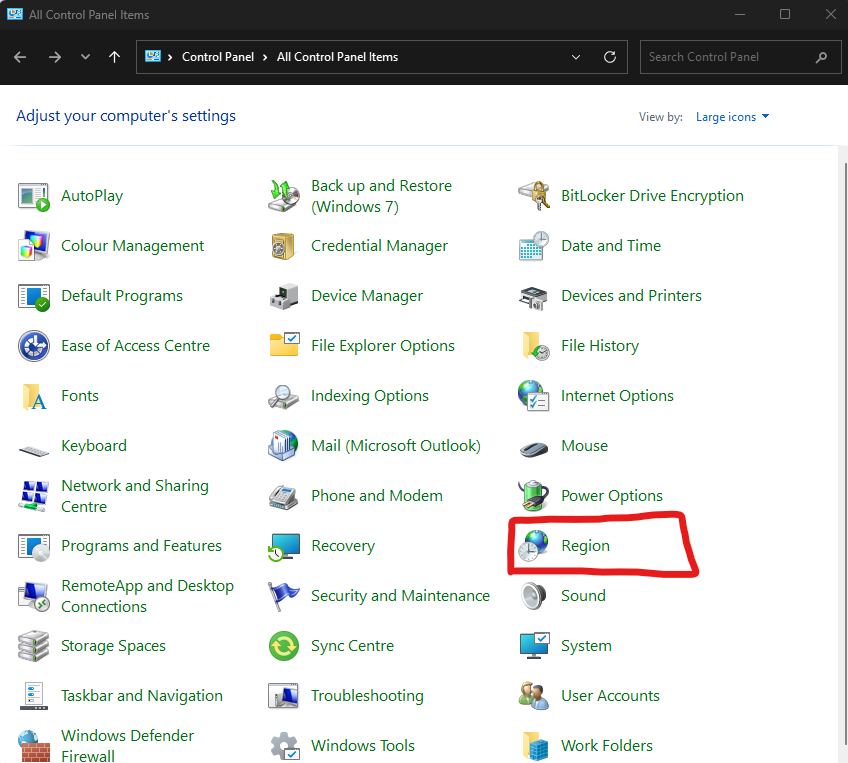
  1. Check the Regional Settings.
  2. Click on start
  3. Go to the Control Panel
  4. Click on Region
  • Make sure the format is set to “English South Africa”.
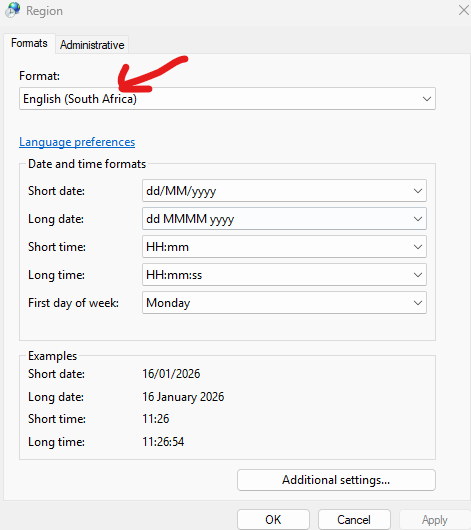
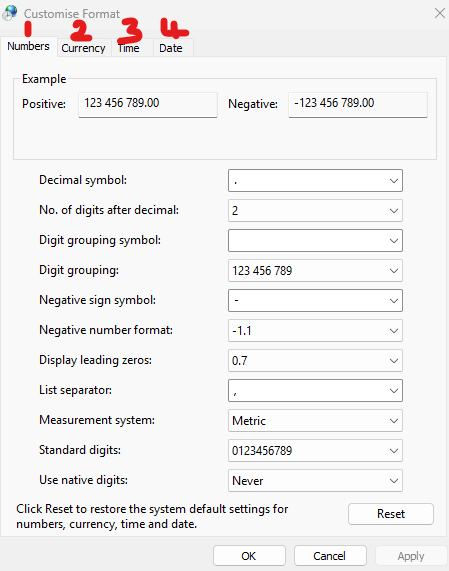
  • Click on Additonal Settings
    • Numbers Tab: Change all the commas to full stops.
    • Currency Tab: Make sure there are no commas (change to full stops if there are).
    • Time Tab: Make sure the AM and PM are in capitals always.
    • Date Tab: Short date – dd/MM/yyyy, and the first day of the week must always be Monday.
LOG ONTO FTP & DOWNLOAD FILES #

  1. Go to http://setup.vmgsoftware.co.za/ and Login
  2. Download the following files located under the “VMG WMS Install Files – 2025” folder:
    1. AccessRuntime_2013_x64.exe (A working version of Microsoft Access that can use our WMS Code)
    2. ax.msi (Active X components are needed to render VMG WMS)
    3. DiagWMS.accdb (This tool helps us fix WMS issues)
    4. winrar521.exe (This ensures we can extract compressed files)
    5. WorkshopNew.exe (This is the applicaiton that opens workshop after calling the version update service)
    6. WorkshopSetup.exe (This setsup the AMG Workshop files and folders)
    7. Workshop_Setup_Files_May2022.exe  (This contains important DLL updates)
    8. Workshop.rar (Found in the “WSLiveUpdate” folder – It is the lastest version of VMG WMS)

INSTALL WMS SUPPORTING FILES #

  1. Install AccessRuntime_2013_x64.exe
  2. Install ax.msi
  3. Install WinRaR
  4. Install WorkshopSetup.exe
    • Notes:
      • this will setup AMGWORKSHOP folder and files on the C Drive
      • This will display Workshop Icon on the desktop
      • After install DO NOT run the software

Make sure you complete the above installations before continuing.

ALLOW ADMINISTRATIVE ACCESS #

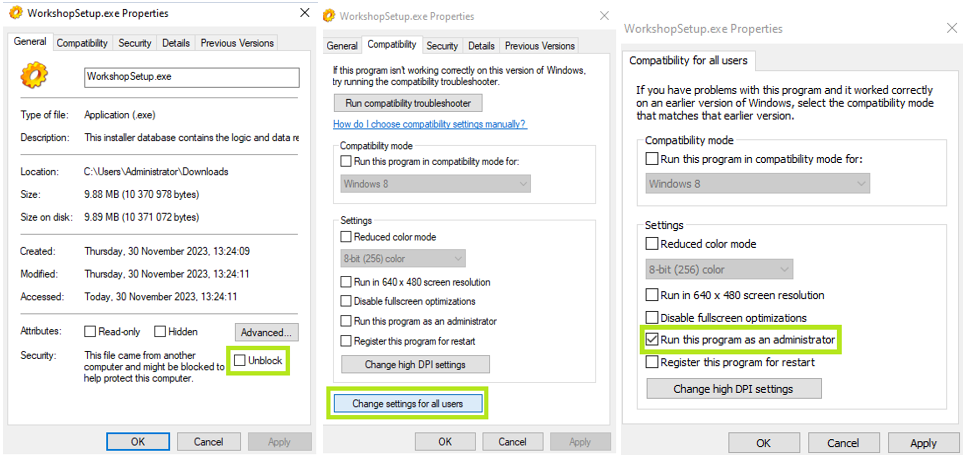
The next step will be to unblock and allow administrative access to the below three files

  1. WorkshopSetup.exe
  2. WorkshopNew.exe 
  3. Workshop_Setup_Files_May2022.exe  

Right click on each of the files, click on properties at the bottom and follow the below example
RUN WORKSHOPSETUP.EXE #

  1. Double-click on WorkshopSetup.exe and install VMG Workshop
  2. Once installed, it will create the following directory under your C drive C:\AMGWORKSHOP

COPY FILES TO C:\AMGWORKSHOP #

  1. Copy WorkshopNew.exe from Downloads folder and paste it in C:\AMGWORKSHOP
  2. Copy Workshop.rar Downloads from Downloads folder and paste in C:\AMGWORKSHOP.
    • Extract Workshop.rar, copy the Workshop.accdb file and paste it in C:\AMGWORKSHOP.
      • When prompted, select copy and replace.
  3. Copy DiagWMS.accdb from Downloads folder and paste it in C:\AMGWORKSHOP
  4. Copy Workshop_Setup_Files_May2022.exe from Downloads folder and paste it in C:\AMGWORKSHOP
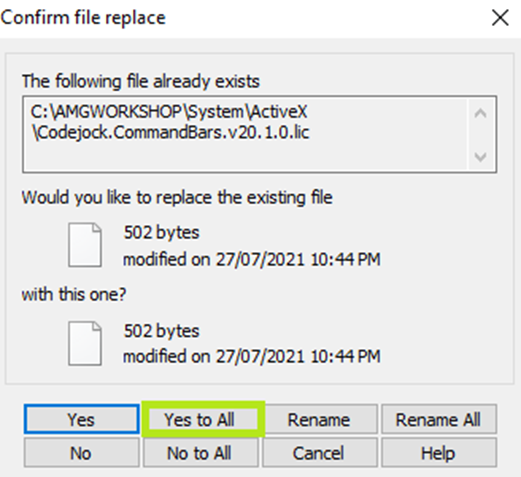
  5. Run Workshop_Setup_Files_May2022.exe. Click on extract here, it will prompt if you want to replace all the existing files like in the below example, please click on Yes to All.
SETUP WORKSHOP FILES #

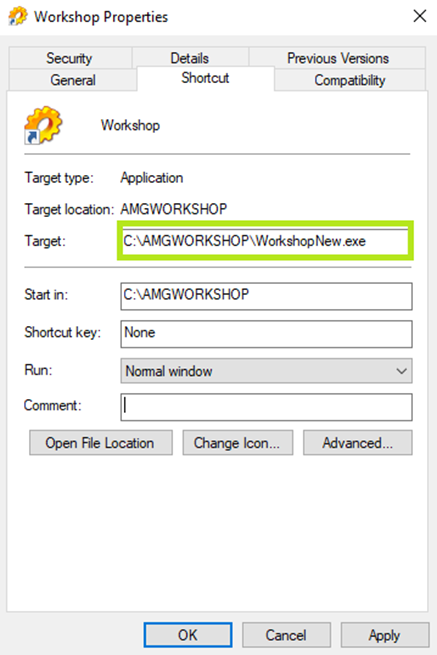
  1. Go to the Workshop shortcut on your desktop, right click on the shortcut and click on properties. Enter the properties of the shortcut on the desktop and change…
    1. “Target” from “C:\AMGWORKSHOP\Workshop.exe” to “C:\AMGWORKSHOP\WorkshopNew.exe” to change the .exe file it is pointing to.
RUN WMS AND LOGIN #

  1. Run WMS from the desktop icon. 
  2. Add the connection string and login.

AFTER NEW DB INSTALL SETUP #

(Make Sure This Is Done Before Training Begins)

  1. After First Login:
    1. Let initial Database updates run. (Please Note: Run DMS for updates before running Workshop).
  2. Data Imports – Clients / Suppliers / Parts:
    1. If the list is too long to input manually, we are able to import the information for the client granted they can provide us with an excel list.
  3. Company Tab:
    1. Load main company details.
    2. Load logo – dimensions 1000 pixels / 500 pixels.
    3. Load terms and conditions for documents if required.
    4. Setup screen – VMG (Tony, Kendall or Dani to do this task).
    5. Update the client requirements on the “Other” tab.
  4. Employees Tab:
    1. Add Employees.
    2. Tick “Show in labor list” if they are a technician and also to use the job timer.
    3. Tick “Service Advisor” if they are one.
  5. System Users Tab:
    1. Add System Users.
    2. Adjust user levels (Report security is created per user).
  6. Clients Tab:
    1. Add internal Debtors (If there are any) – Make sure the internal box is ticked.
  7. Parts:
    1. Discuss automatic markups on purchases.
    2. Add automatic mark-ups on purchases if needed.
  8. Job Cards:
    1. Email the client the different templates.
    2. Client to email us back their selection with any changes.
    3. Add Job Types – Mechanical Repairs, Electrical Repairs, Service etc. 
    4. Add Labour Types – Internal, external or even client specific.
  9. Accounting:
    1. Set up accounting periods.
    2. Take as balances as per the VMG accounting Process.
  10. Labour Timer:
    1. Select an employee under the employees tab, tick the “Show in Labour List” box and add the password the technician chooses.
    2. Setup screen to activate timer (Tony or Stephen to do this task).
    3. Please note that the passwords need to be created for the employee before the timer is activated on the Setup Screen.
Updated on January 21, 2026
Table of Contents
  • CHECK REGIONAL SETTINGS
  • LOG ONTO FTP & DOWNLOAD FILES
  • INSTALL WMS SUPPORTING FILES
  • ALLOW ADMINISTRATIVE ACCESS
  • RUN WORKSHOPSETUP.EXE
  • COPY FILES TO C:\AMGWORKSHOP
  • SETUP WORKSHOP FILES
  • RUN WMS AND LOGIN
  • AFTER NEW DB INSTALL SETUP