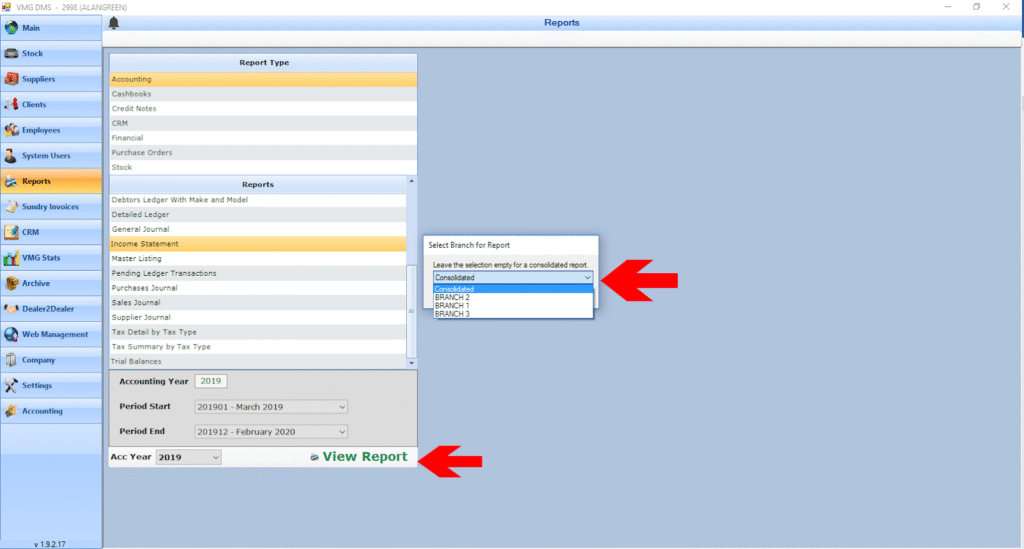
VMG Multibranch is a feature that enables dealerships using VMG DMS Accounting to view income statements per branch.
VMG DMS Multibranch incurs an additional cost of R 1000 (ex VAT) pm, per branch. This amount is added to your dealerships normal monthly amount.
Follow these steps in the exact order you see them. If we skip a step it can lead to frustrations.
- Enable Multibranch in Admin console (Note: Only VMG Senior Support staff can do this for you)
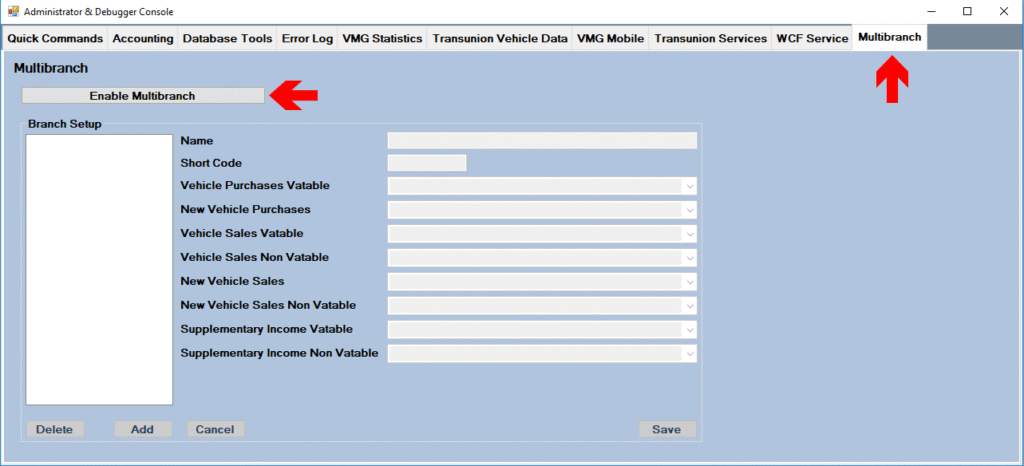
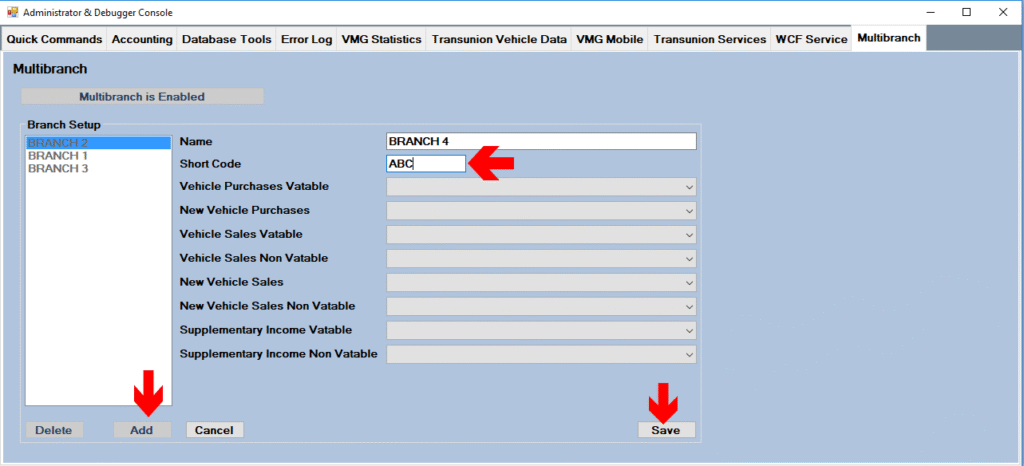
- Click the Add to add your branches. Click Save after adding each branch.
Note: Your Short Code must consist of letters only and will form the last three characters in your account codes. EG. 2000/ABC.
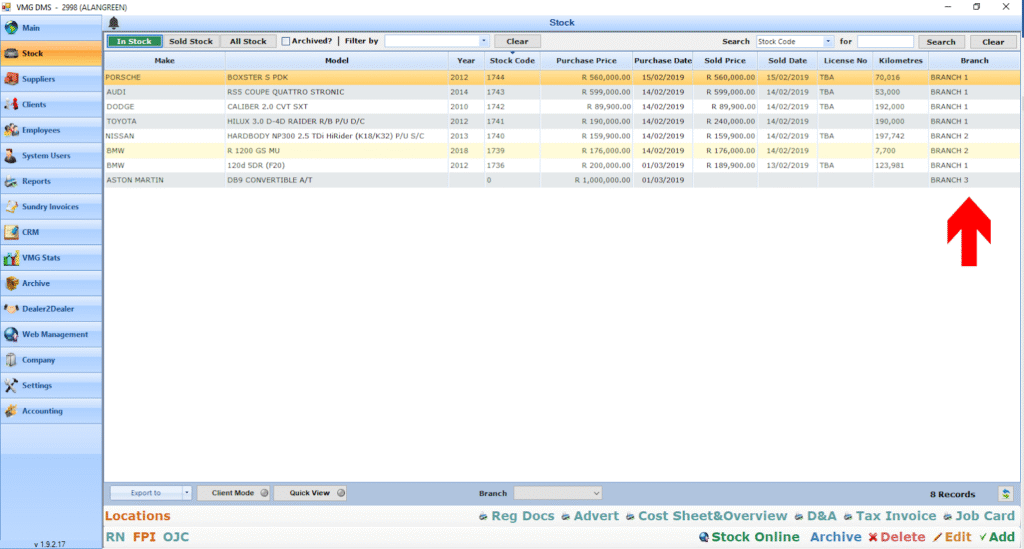
- Log onto VMG, navigate to the main stock screen. Note that the location column has been replaced with a branch column.
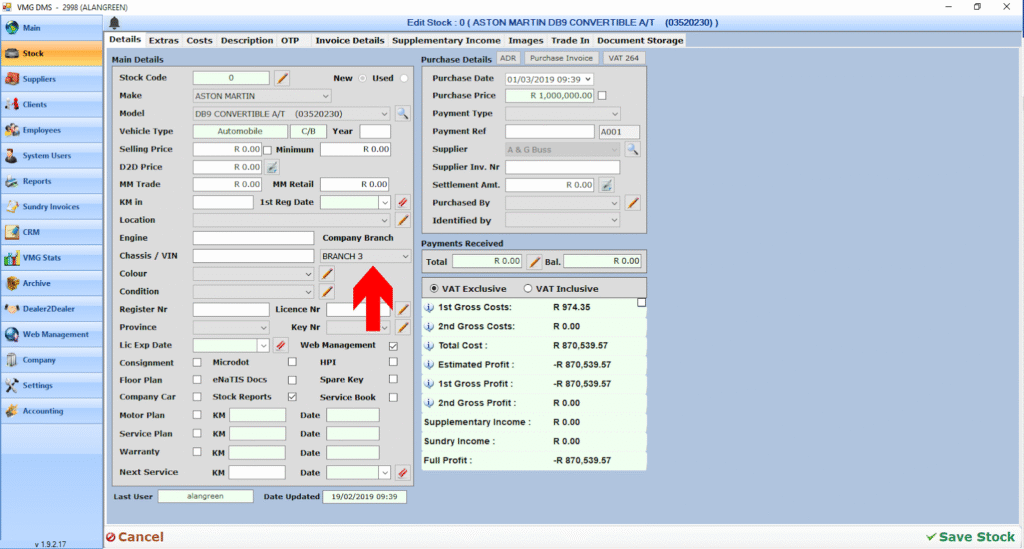
- Open any vehicle to the main details tab. Note that you can now edit the branch field.
A Branch MUST be assigned BEFORE you can TRANSFER stock transactions to the ledger.
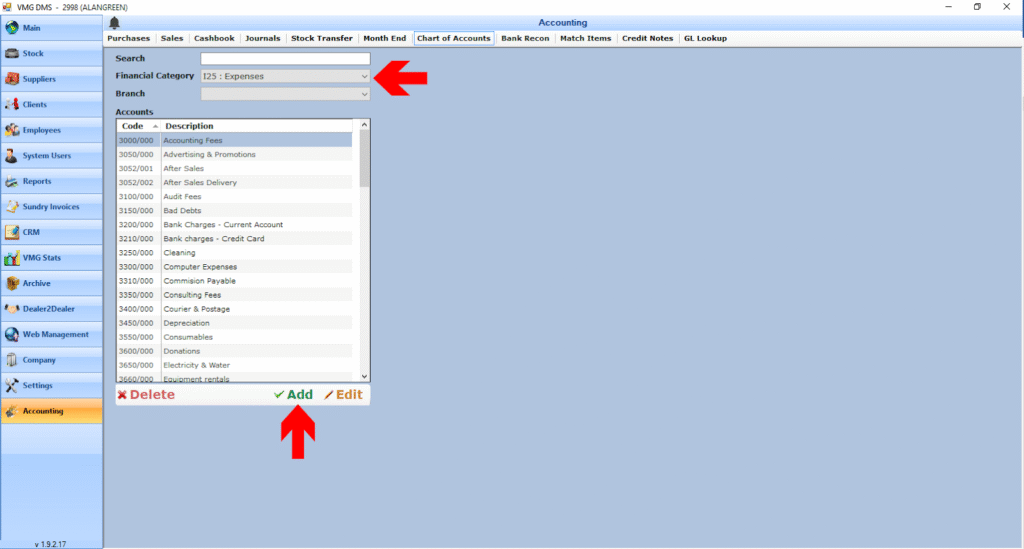
- Navigate to the Chart of Accounts and create your expense account for each branch.
Note that you can now assign a branch to any NEWLY created ledger account. You CAN NOT assign a branch to any ledger accounts created before Multibranch has been enabled.
Note: Once you have selected a Branch, your account code will be followed by the Short Code you assigned in Step 2.
Click Save.

- Transferring Stock Transactions will go to which ever branch that vehicle has been assigned to in Step 4.
Note: Should the vehicle be brought into stock and assigned a branch but then later re assigned to a new branch at point of sale, all costs that have been transferred on that vehicle will be assigned to whatever branch is assigned to that vehicle.
Note: When a sale is transferred to the ledger. The branch assigned is locked and cannot be changed. A branch can be edited after a credit note has been processed for the sale.

- You can view your income statement per branch or select the consolidated income statement when choosing your income statement report view.