Follow these steps for seamless VMG WMS installs
CHECK REGIONAL SETTINGS #
- Check the Regional Settings.
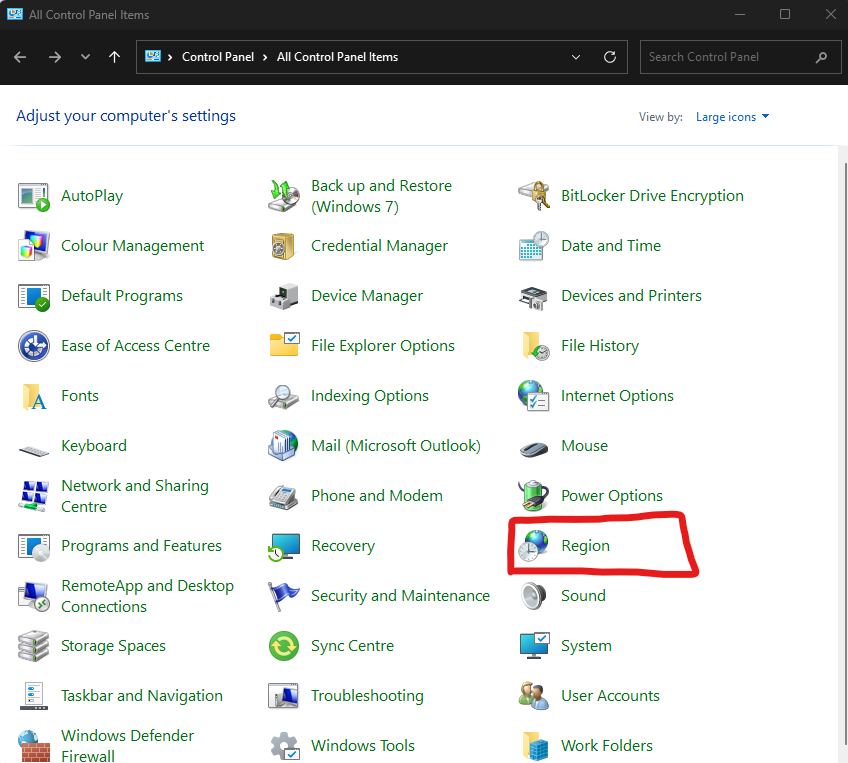
- Click on start
- Go to the Control Panel
- Click on Region
- Make sure the format is set to “English South Africa”.
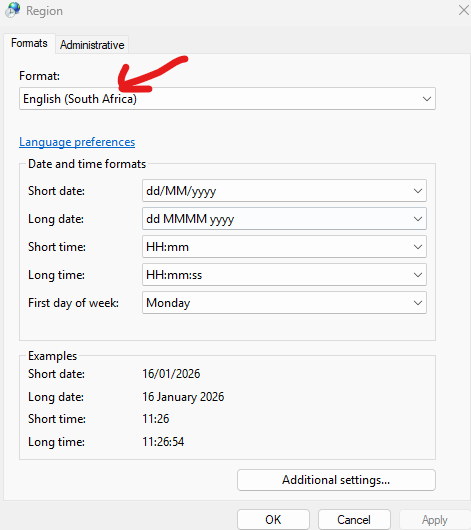
- Click on Additonal Settings
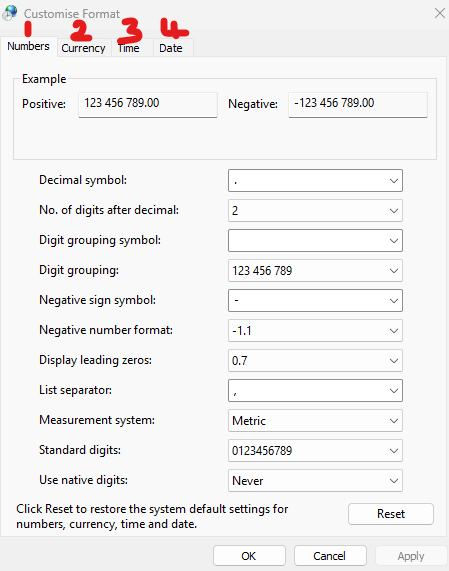
- Numbers Tab: Change all the commas to full stops.
- Currency Tab: Make sure there are no commas (change to full stops if there are).
- Time Tab: Make sure the AM and PM are in capitals always.
- Date Tab: Short date – dd/MM/yyyy, and the first day of the week must always be Monday.
LOG ONTO FTP & DOWNLOAD FILES #
- Go to http://setup.vmgsoftware.co.za/ and Login
- Download the following files located under the “VMG WMS Install Files – 2025” folder:
- AccessRuntime_2013_x64.exe (A working version of Microsoft Access that can use our WMS Code)
- ax.msi (Active X components are needed to render VMG WMS)
- DiagWMS.accdb (This tool helps us fix WMS issues)
- winrar521.exe (This ensures we can extract compressed files)
- WorkshopNew.exe (This is the applicaiton that opens workshop after calling the version update service)
- WorkshopSetup.exe (This setsup the AMG Workshop files and folders)
- Workshop_Setup_Files_May2022.exe (This contains important DLL updates)
- Workshop.rar (Found in the “WSLiveUpdate” folder – It is the lastest version of VMG WMS)
INSTALL WMS SUPPORTING FILES #
- Install AccessRuntime_2013_x64.exe
- Install ax.msi
- Install WinRaR
- Install WorkshopSetup.exe
- Notes:
- this will setup AMGWORKSHOP folder and files on the C Drive
- This will display Workshop Icon on the desktop
- After install DO NOT run the software
- Notes:
Make sure you complete the above installations before continuing.
ALLOW ADMINISTRATIVE ACCESS #
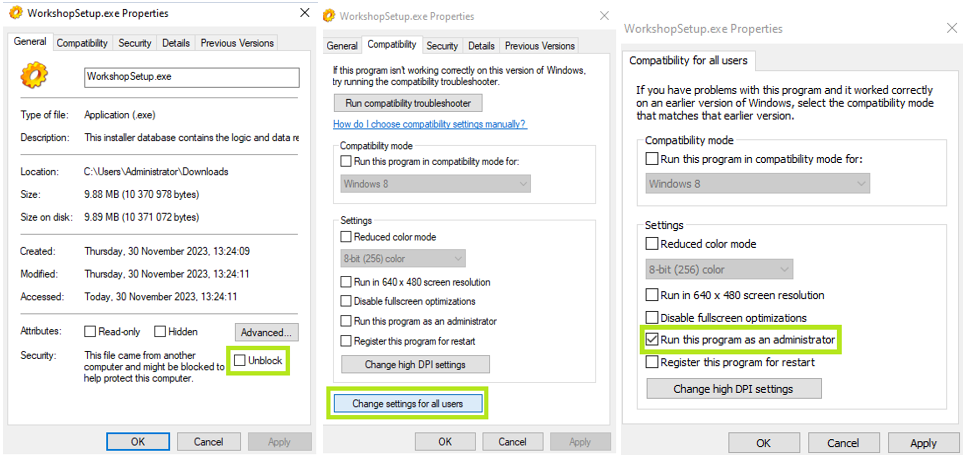
The next step will be to unblock and allow administrative access to the below three files
- WorkshopSetup.exe
- WorkshopNew.exe
- Workshop_Setup_Files_May2022.exe
Right click on each of the files, click on properties at the bottom and follow the below example
RUN WORKSHOPSETUP.EXE #
- Double-click on WorkshopSetup.exe and install VMG Workshop
- Once installed, it will create the following directory under your C drive C:\AMGWORKSHOP
COPY FILES TO C:\AMGWORKSHOP #
- Copy WorkshopNew.exe from Downloads folder and paste it in C:\AMGWORKSHOP
- Copy Workshop.rar Downloads from Downloads folder and paste in C:\AMGWORKSHOP.
- Extract Workshop.rar, copy the Workshop.accdb file and paste it in C:\AMGWORKSHOP.
- When prompted, select copy and replace.
- Extract Workshop.rar, copy the Workshop.accdb file and paste it in C:\AMGWORKSHOP.
- Copy DiagWMS.accdb from Downloads folder and paste it in C:\AMGWORKSHOP
- Copy Workshop_Setup_Files_May2022.exe from Downloads folder and paste it in C:\AMGWORKSHOP
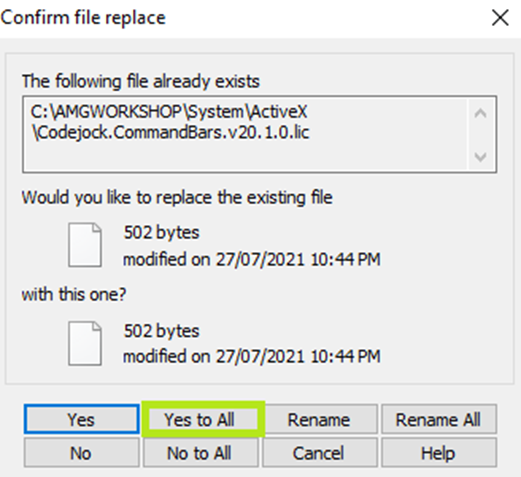
- Run Workshop_Setup_Files_May2022.exe. Click on extract here, it will prompt if you want to replace all the existing files like in the below example, please click on Yes to All.
SETUP WORKSHOP FILES #
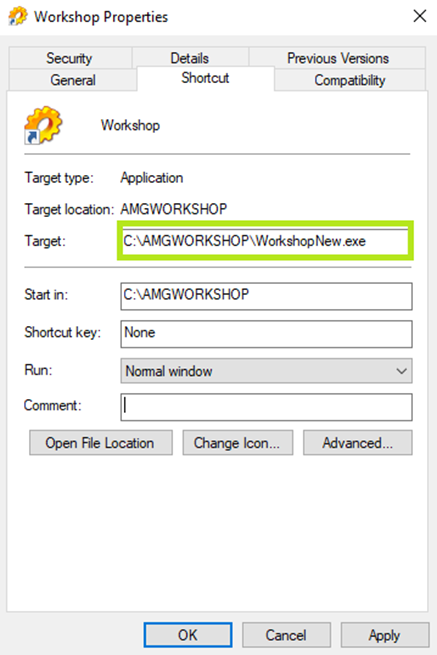
- Go to the Workshop shortcut on your desktop, right click on the shortcut and click on properties. Enter the properties of the shortcut on the desktop and change…
- “Target” from “C:\AMGWORKSHOP\Workshop.exe” to “C:\AMGWORKSHOP\WorkshopNew.exe” to change the .exe file it is pointing to.
RUN WMS AND LOGIN #
- Run WMS from the desktop icon.
- Add the connection string and login.
AFTER NEW DB INSTALL SETUP #
(Make Sure This Is Done Before Training Begins)
- After First Login:
- Let initial Database updates run. (Please Note: Run DMS for updates before running Workshop).
- Data Imports – Clients / Suppliers / Parts:
- If the list is too long to input manually, we are able to import the information for the client granted they can provide us with an excel list.
- Company Tab:
- Load main company details.
- Load logo – dimensions 1000 pixels / 500 pixels.
- Load terms and conditions for documents if required.
- Setup screen – VMG (Tony, Kendall or Dani to do this task).
- Update the client requirements on the “Other” tab.
- Employees Tab:
- Add Employees.
- Tick “Show in labor list” if they are a technician and also to use the job timer.
- Tick “Service Advisor” if they are one.
- System Users Tab:
- Add System Users.
- Adjust user levels (Report security is created per user).
- Clients Tab:
- Add internal Debtors (If there are any) – Make sure the internal box is ticked.
- Parts:
- Discuss automatic markups on purchases.
- Add automatic mark-ups on purchases if needed.
- Job Cards:
- Email the client the different templates.
- Client to email us back their selection with any changes.
- Add Job Types – Mechanical Repairs, Electrical Repairs, Service etc.
- Add Labour Types – Internal, external or even client specific.
- Accounting:
- Set up accounting periods.
- Take as balances as per the VMG accounting Process.
- Labour Timer:
- Select an employee under the employees tab, tick the “Show in Labour List” box and add the password the technician chooses.
- Setup screen to activate timer (Tony or Stephen to do this task).
- Please note that the passwords need to be created for the employee before the timer is activated on the Setup Screen.