
Understanding the administration steps to Managing Floor Plan vehicles in VMG DMS #
This guide seeks to help you record the administrative information as it relates to vehicles that have been added to your Floor Plan facility.
A Floor Plan is a facility that dealers sometimes use to assist them with the buying of vehicles. A Floor Plan service provider, usually a bank, will open a Floor Plan line of credit to qualifying dealers.
Essentially, the bank will allow the dealership to use this credit facility to buy vehicles. Think of this facility as an overdraft but it is accessible vehicle by vehicle.
Adding Vehicles to Floor Plan #
- Open the relevant vehicle from the stock tab
- Tick the floorplan tick box on the Details Tab and then select the Floorplan Tab
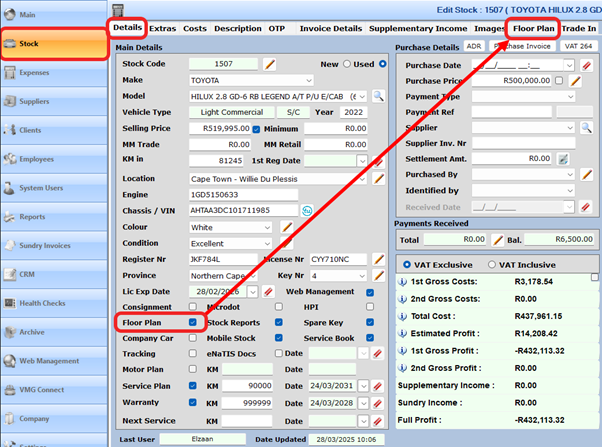
- Once in the Floor Plan tab
-
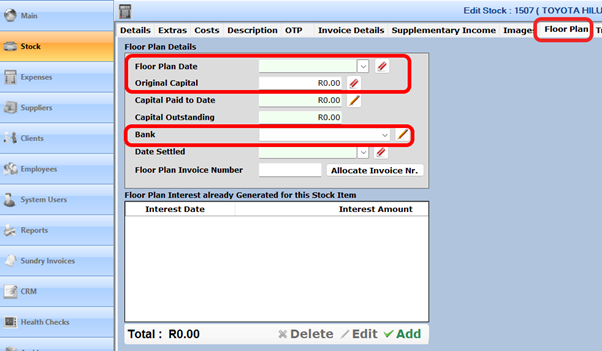
- Enter the date the vehicle was added to Floor Plan
- Enter the original Capital borrowed
- Select the relevant bank and ensure that the correct interest rate is being used
NOTE: If the interest rate changes, be sure to add the new interest rate and update all vehicles on Floor Plan to the new rate.
Printing The Floor Plan Invoice #
Some Floor Plan providers require that you send them an invoice.
NOTE: The Floor Plan invoice generated has ZERO effect on any other VMG reports. It is simply a document that can be printed and sent to your Floor Plan service provider.
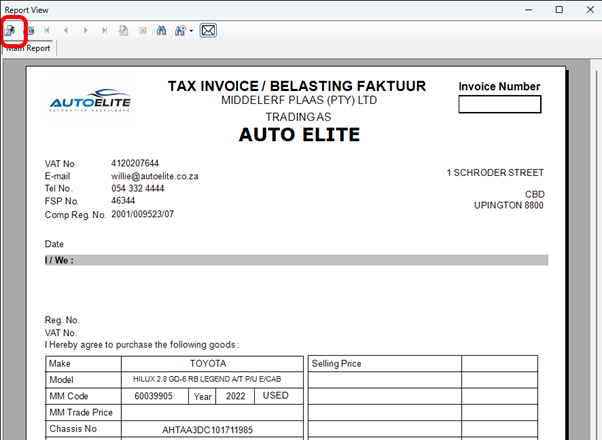
- Allocate the Floor Plan Invoice number
- Print the Floor Plan Bank Invoice by selecting the Save & Print Floor Plan Bank Invoice button

- Export the invoice to PDF and save it to a folder on your computer.
- Once saved as a PDF, you can attach the invoice to an email.
Adding Floor Plan Interest and Admin Costs #
There are three methods you can use to manage this.
Method 1 #
- Manually add the interest and admin costs as seen on your statement provided to you from your Floor Plan service provider.
- This method is advised for dealerships who have less than 20 vehicles on Floor Plan.
- Using this method will enable you to capture the interest and admin fees directly from your SOURCE DOCUMENT (Bank Floor Plan Statement)
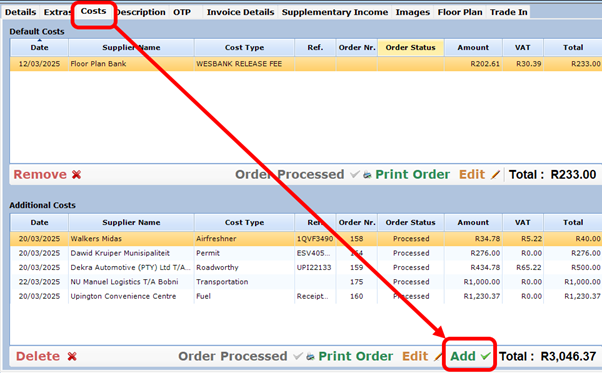
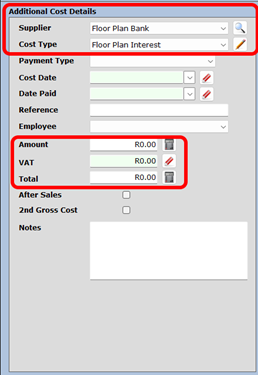
NOTE: Floor Plan interest is NOT vatable, but Floor Plan Admin fees ARE vatable.
Method 2 #
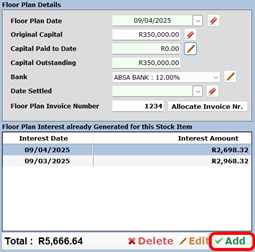
- Add the interest amounts to the vehicle directly from the floorplan tab
- This will add the interest cost to the costs of the vehicle.
NOTE: You will still need to manually add the admin fees as described in Method 1
Method 3 #
- Use the Floor Plan Interest Generator once per month.
- Add a calendar reminder to assist you in doing this on time every month.
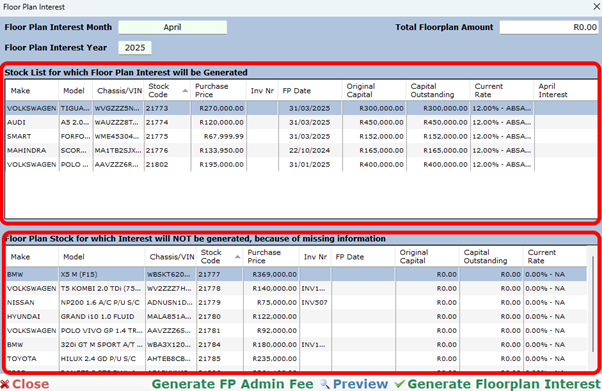
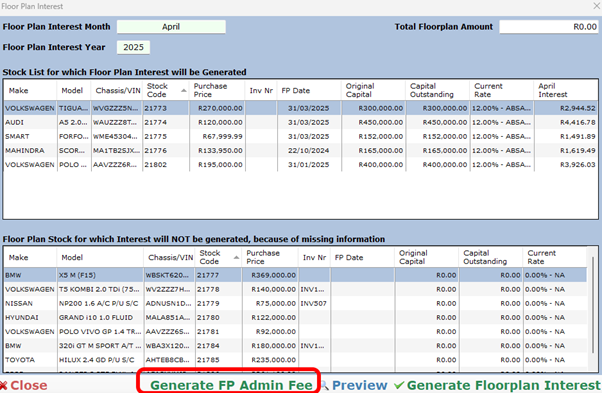
- Click on the FPI button on your main stock screen.

- You will be presented with two windows.
- The top window displays vehicles for which interest can be generated, the bottom window displays vehicles with missing floor plan interest data. The bottom window should be empty.
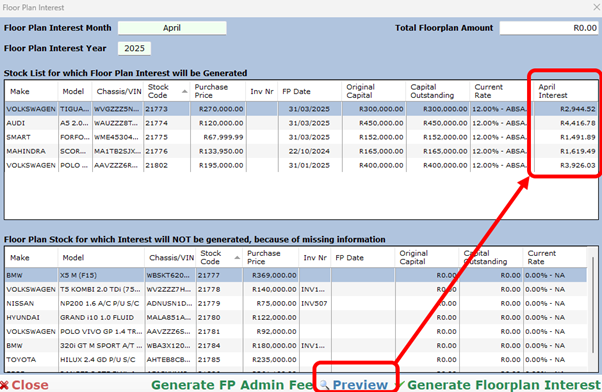
Select the preview button to view the interest rates amounts for the month so that you can compare the amounts to your Floor Plan statement for the same month.
Generate Floor Plan Interest #
This feature will add the interest amounts onto each car as a cost.
NOTE: Once you have generated the floorplan interest DO NOT close the floor plan window. Forst complete the Generate Floor Plan Admin Fee Set seen below
- Click the Generate Floor Plan Interest Button

If presented with the following message, first correct your Floor Plan data. Alternatively, click yes to continue.

If successful, you will be presented with the following message
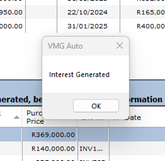
You can check this by opening any of the vehicles on floorplan to verify that the cost has been allocated correctly.
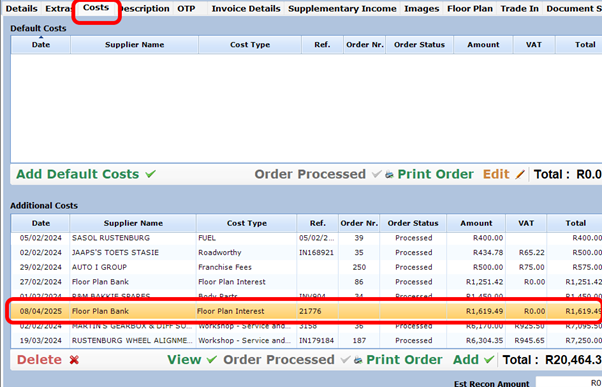
Generate FP Admin Fee #
This feature will add the Admin fee to each vehicle on floorplan for the month.
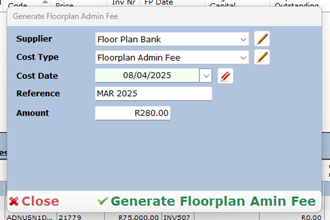
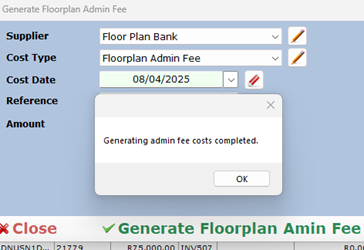
In the next step, assign the data to the fields presented to you and select the Generate Floor Plan Admin Fee button
After selecting Yes, you will be presented with the following message
Floor Plan Reports #
There are two categories of Floor Plan reports.
Stock Value with Floor Plan Reports #
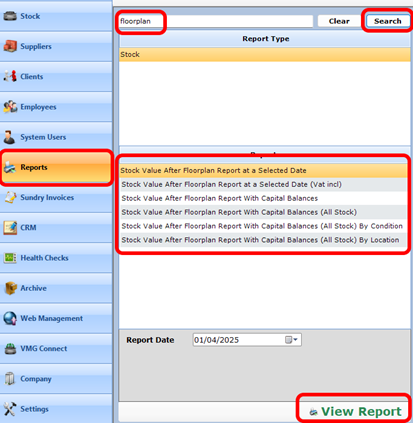
- Navigate to reports
- To view the stock value reports, type floorplan with NO spaces in the search box and then click search
Financial Floor Plan Reports #
- Navigate to reports
- Type Floor Plan with a space between floor and plan.
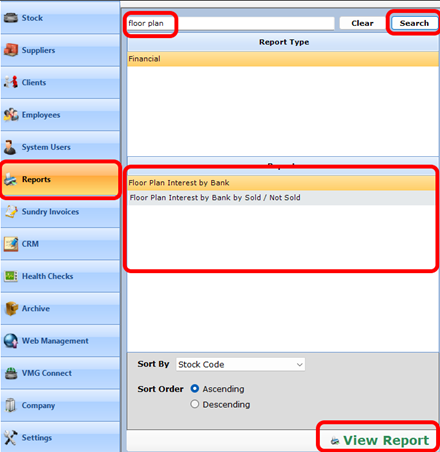
- Select the report that is relevant for your needs.
Settling Floor Plan Vehicles and Removing them From Floor Plan #
- Once vehicles are sold, the bank will be paid back the Floor Plan amount borrowed.
- When this is done, we need to visit the Floor Plan tab for that specific vehicle and add the Capitol amount paid as well as the settlement date.
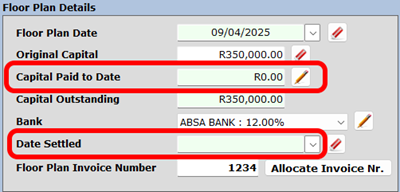

Once the vehicle has received a settlement date, it will be removed from the floor plan reports.